HP LaserJet P1005
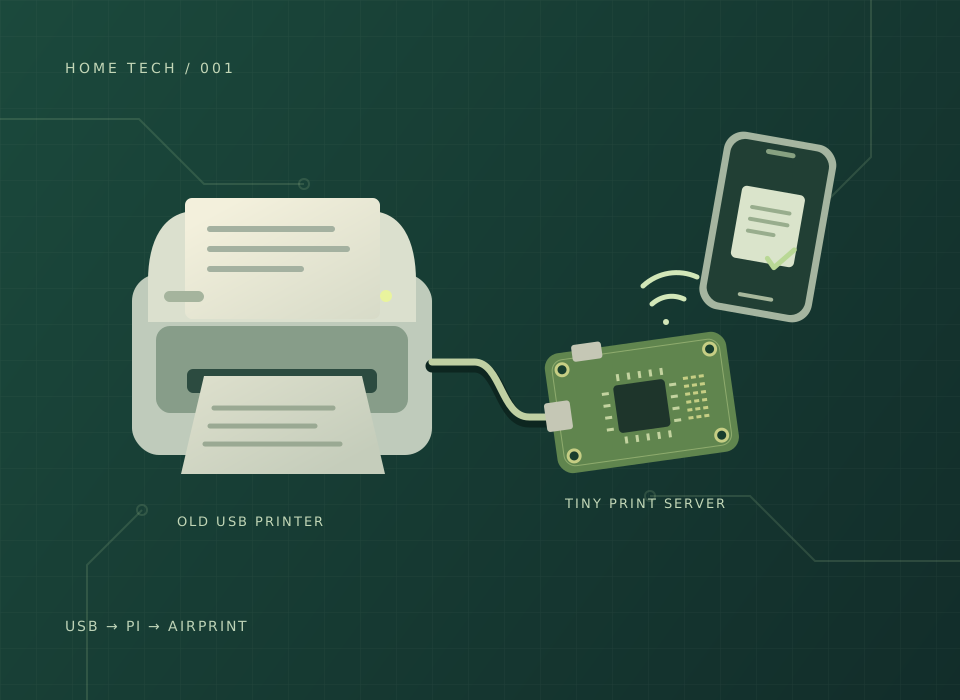
The existing USB printer. No native AirPrint.
Home tech / Project 01
Adding Wi-Fi and AirPrint to an HP LaserJet P1005 with a Raspberry Pi Zero.
01 / The idea
My HP LaserJet P1005 did not have native AirPrint. I used a Raspberry Pi Zero to add the network-printing side, rather than asking the printer to do something it was never built to do.
The Pi sits between the USB printer and the home network. It receives print jobs, handles the printer connection, and makes the printer available wirelessly. I got Wi-Fi and AirPrint working with this setup.
AirPrint is for printing from Apple devices. The printer still connects to the Pi by USB; the Pi is the network bridge.
02 / The parts
The existing USB printer. No native AirPrint.
The small Linux computer acting as a print server.
Check which Zero you have before buying parts. The original Zero has no built-in Wi-Fi; wireless models or a compatible adapter provide it. The exact Zero variant and adapter details are not recorded here.
03 / The software
Manages the printer queue and passes print jobs to the USB printer. My setup notes confirm OpenPrinting CUPS 2.4.10 was running.
The Bonjour-compatible mDNS/DNS-SD piece in the setup plan. It helps devices find shared services on the local network.
The setup notes discussed foo2zjs and HPLIP for the P1005. The final driver and firmware choice was not preserved, so those should be checked rather than treated as a tested recipe.
Background: CUPS printer sharing · Avahi service discovery
04 / Build overview
This is a record of the project and a high-level path for a similar build, not a copy-and-paste installation guide.
Install a compatible Raspberry Pi OS and make sure the Pi can reach your network and download packages. The original setup had networking problems before the printing work could begin.
Install and start CUPS, then confirm its administration interface works. Keep administration authenticated and limited to your trusted local network.
Connect the P1005 to the Pi, select the actual USB device in CUPS, and configure a compatible driver. Prove that a local test page prints before debugging wireless discovery.
Enable sharing for the printer and configure local discovery. CUPS sharing and Bonjour-compatible discovery are separate parts of the same path.
Check printing from the Mac and the iPhone or iPad on the same home network. Then check again after restarting the Pi and power-cycling the printer.
05 / What to watch for
A printer appearing in a list does not prove that its driver can print. Test the USB queue first, then the network connection.
The P1005 has a firmware-loading requirement. Verify the chosen driver’s firmware setup and test after switching the printer off and back on. Do not assume installing a package alone has covered it.
A home print server does not need to be exposed to the public internet. Keep credentials private, keep the Pi updated, and avoid router port forwarding for the print service.
The Pi added Wi-Fi and AirPrint to hardware that did not have them. It was a connectivity upgrade, not a fix for worn printer parts or faded output.
Keep handy
Written up October 2026. The build history is preserved as project notes; package versions, drivers, and setup steps can change.